How to use this site
Every step, from creating an account to tracking your order and requesting a return.
1 Sign Up
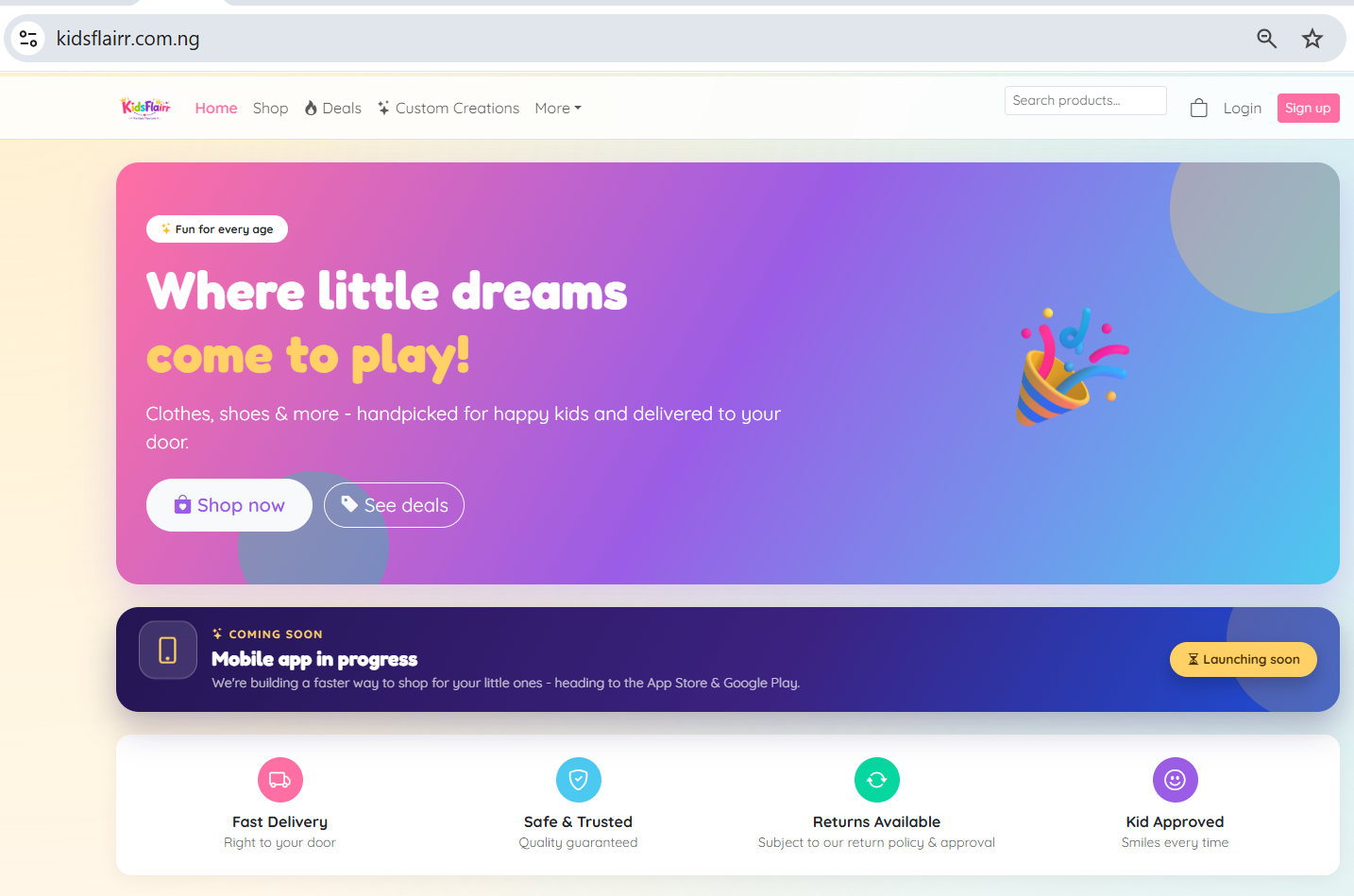
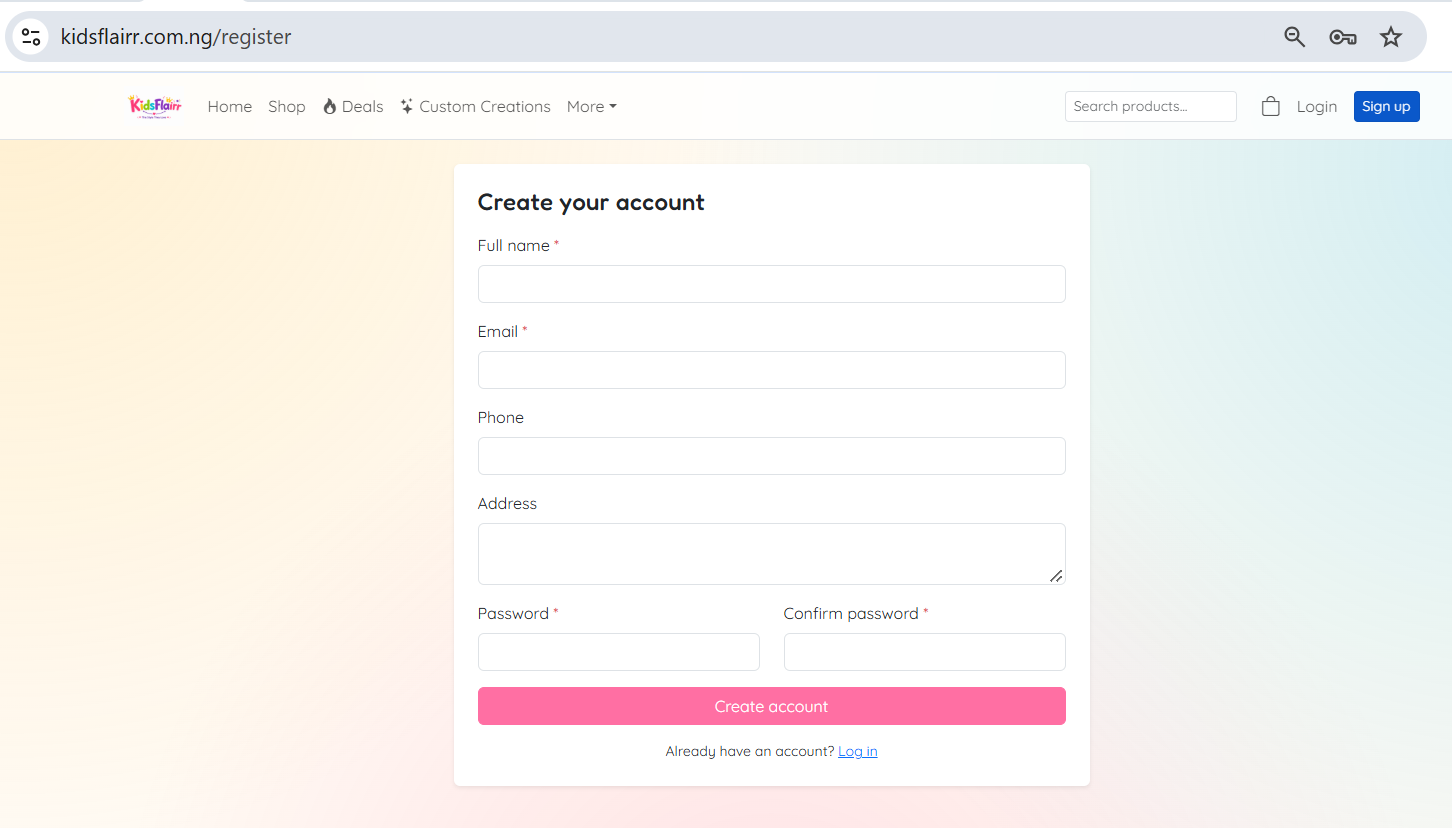
Tap Sign up at the top right of any page, enter your name, email and password, then create your profile. A free account keeps your orders, addresses and returns in one place.
- The Sign up button sits beside Login in the menu
- Use an email you can open right away - we send a code to it
- Signing up takes less than a minute
2 Email Verification
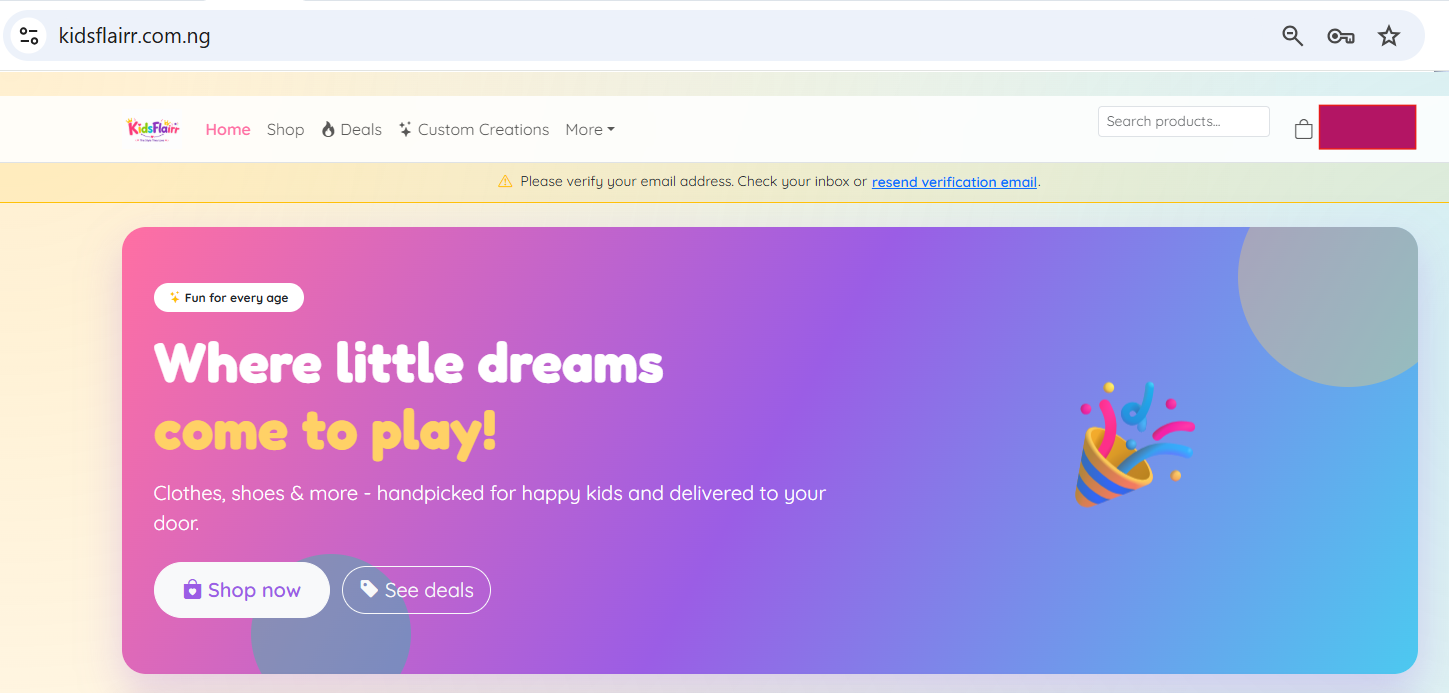
After signing up we email you a 6-digit verification code. Enter it on the verification screen to activate your account. The code expires quickly - press Resend if you need a new one.
3 Login
Tap Login, enter your email and password, and you are back in. Two-factor accounts also enter a 6-digit code, and the same screen lets you reset a forgotten password.
4 Profile Page
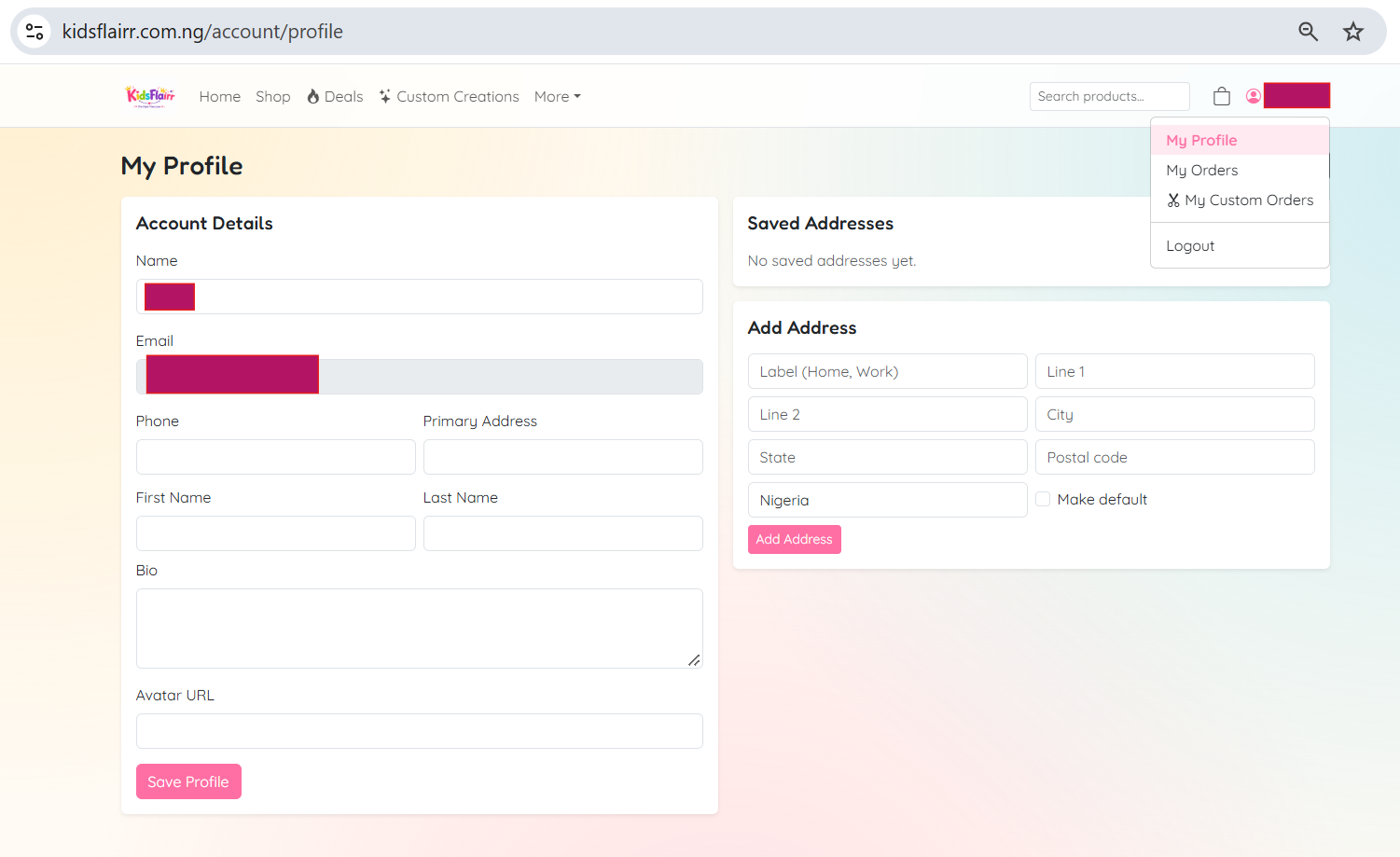
Click your name, then My Profile, to update your phone number, change your password and manage delivery addresses. Set a default address so checkout fills it in automatically.
5 Shop Page
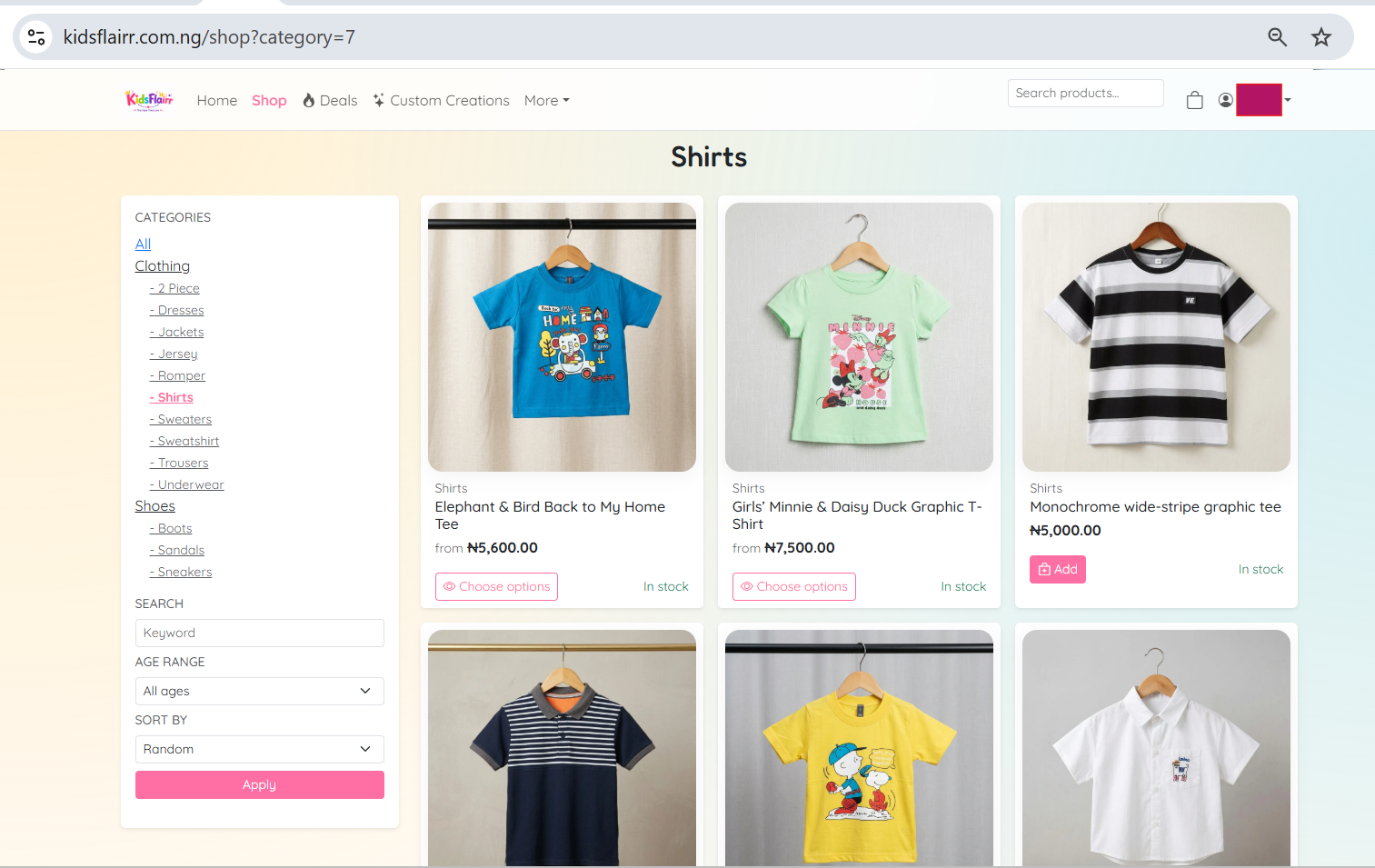
Open the Shop from the menu to browse everything. Filter by category, pick an age range, sort by price or use the search bar to find a specific item.
- Categories narrow the list to dresses, shoes, bags and more
- Age range shows sizes that fit your child
- The search bar matches product names instantly
- Press Add to cart on a product page to keep an item for checkout
6 Cart Page
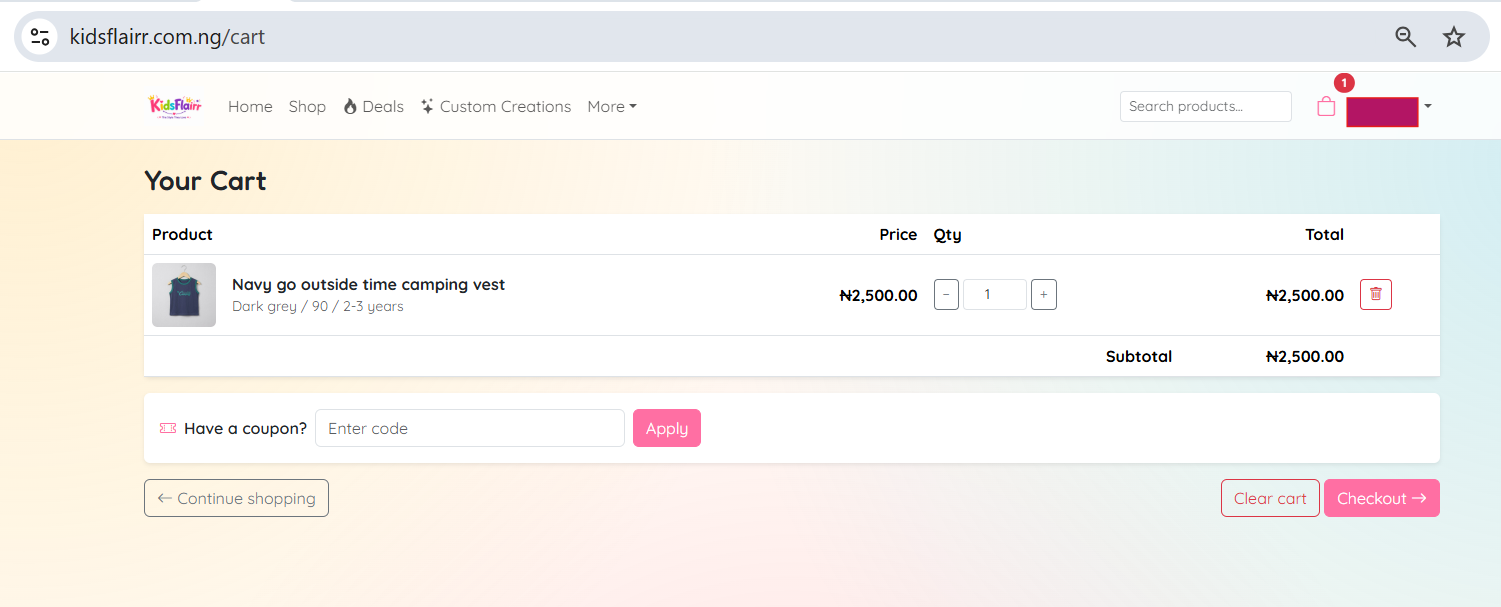
Click the bag icon to review what you picked. Change quantities, remove items and watch the subtotal update. Have a coupon? Type the code in the coupon box and press Apply - the discount shows straight away.
7 Checkout
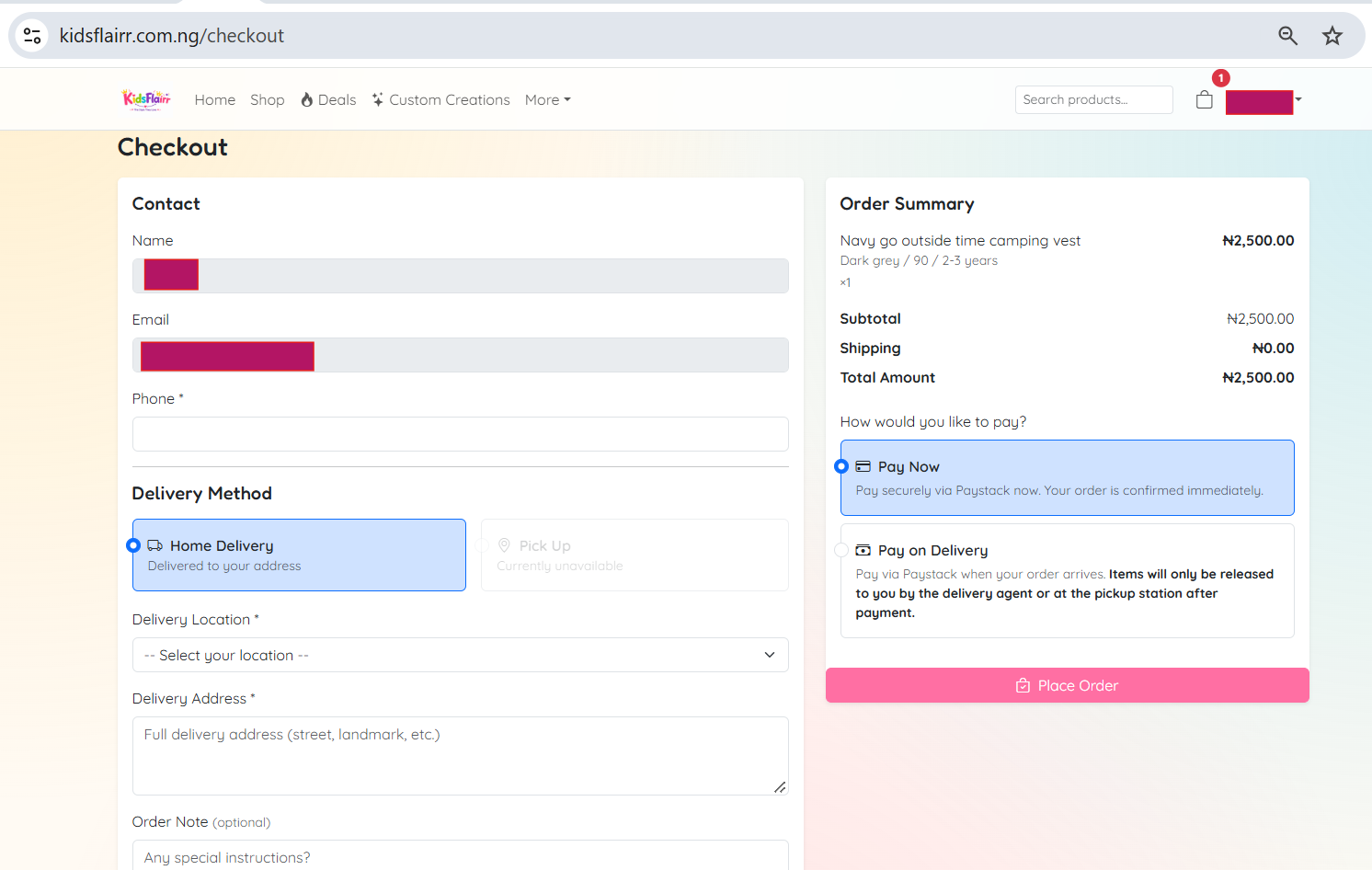
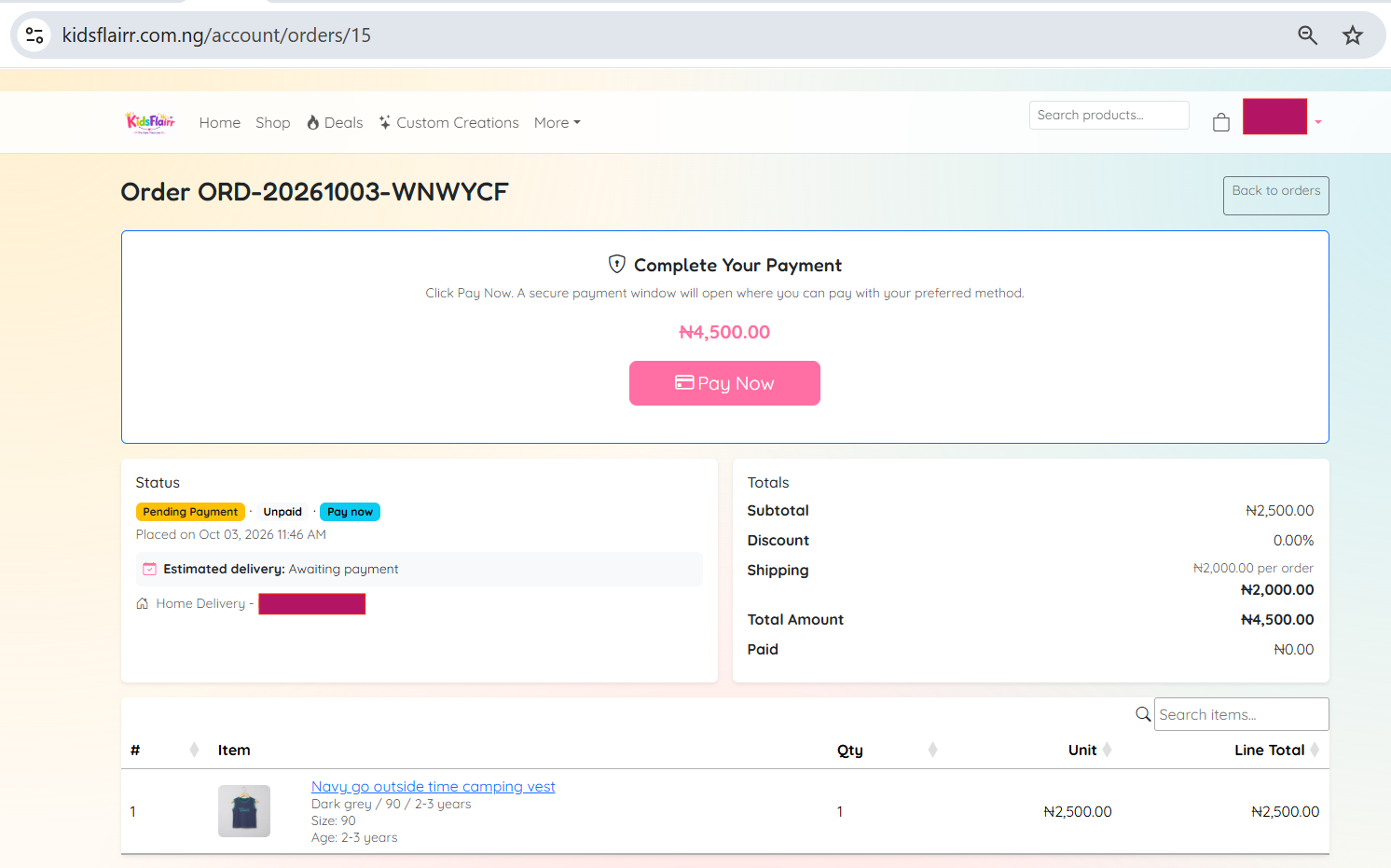
Press Checkout and choose Delivery or Pickup. For delivery, select your location and type your full address; for pickup, choose a station near you. Your location decides the delivery fee, then pick Pay Now or Pay on Delivery.
8 My Orders Page
Click your name, then My Orders, for the full history of your orders. Open an order to see its items, status, payment options and the Request Return button once it is delivered.
9 Custom Frock Pages
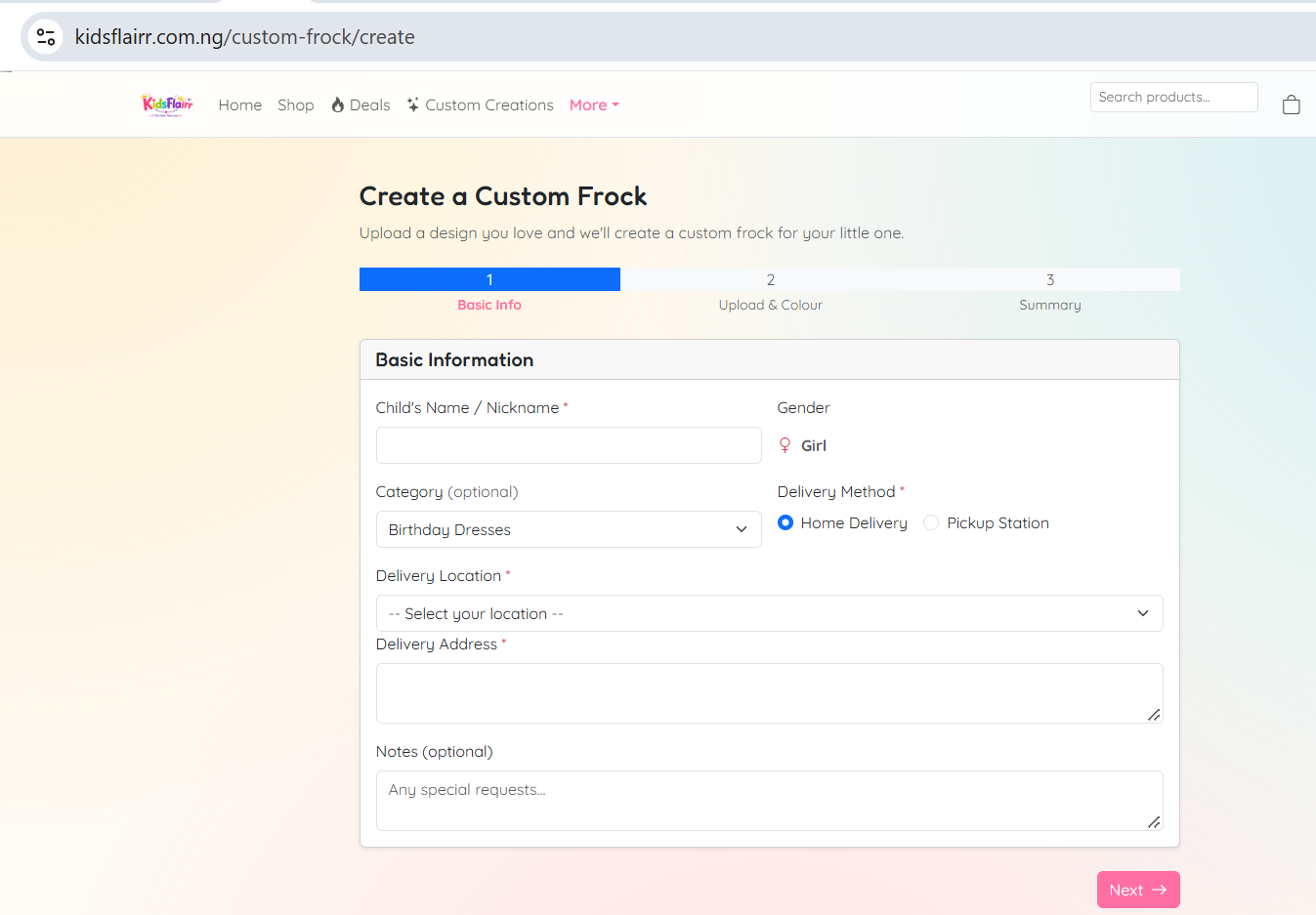
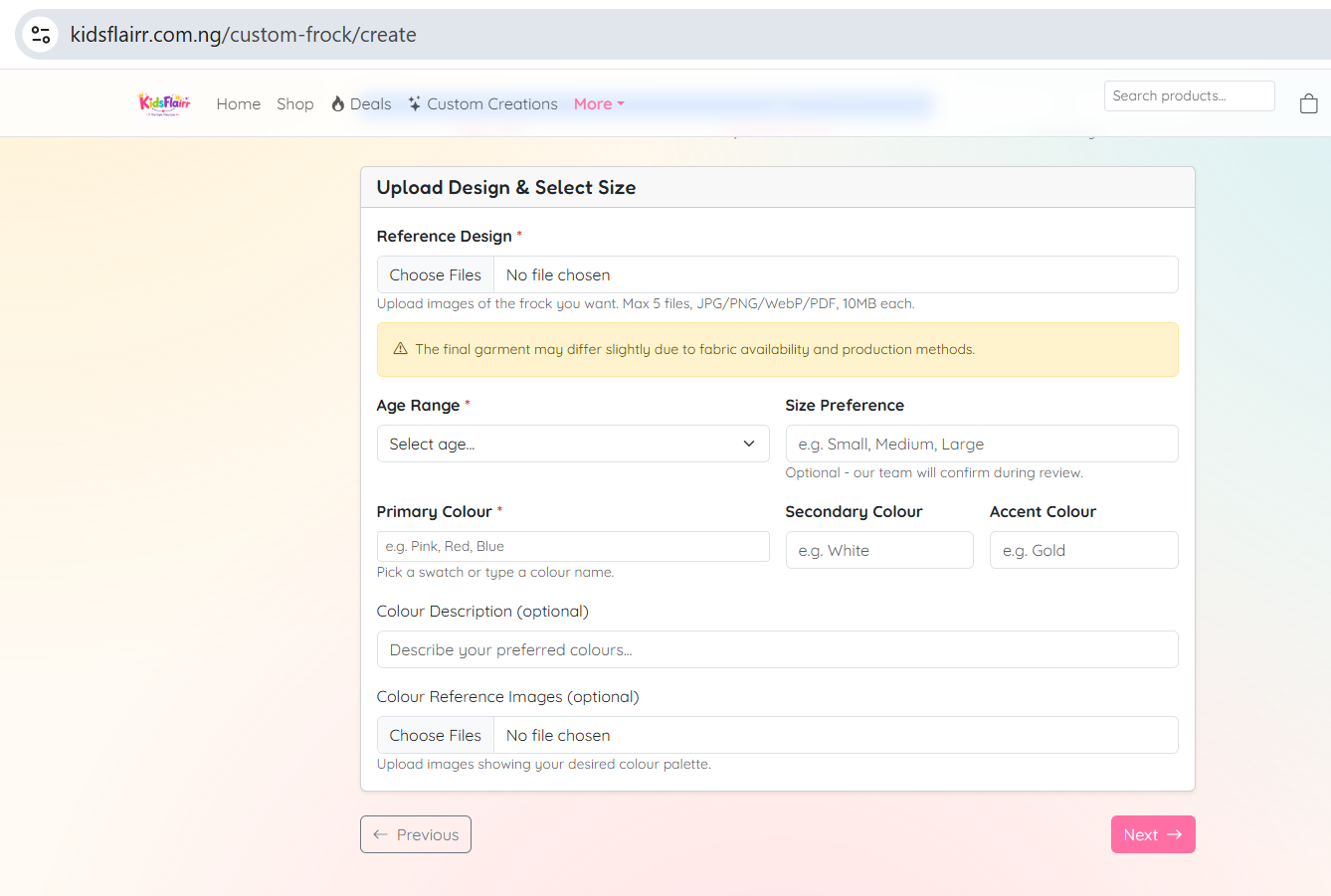
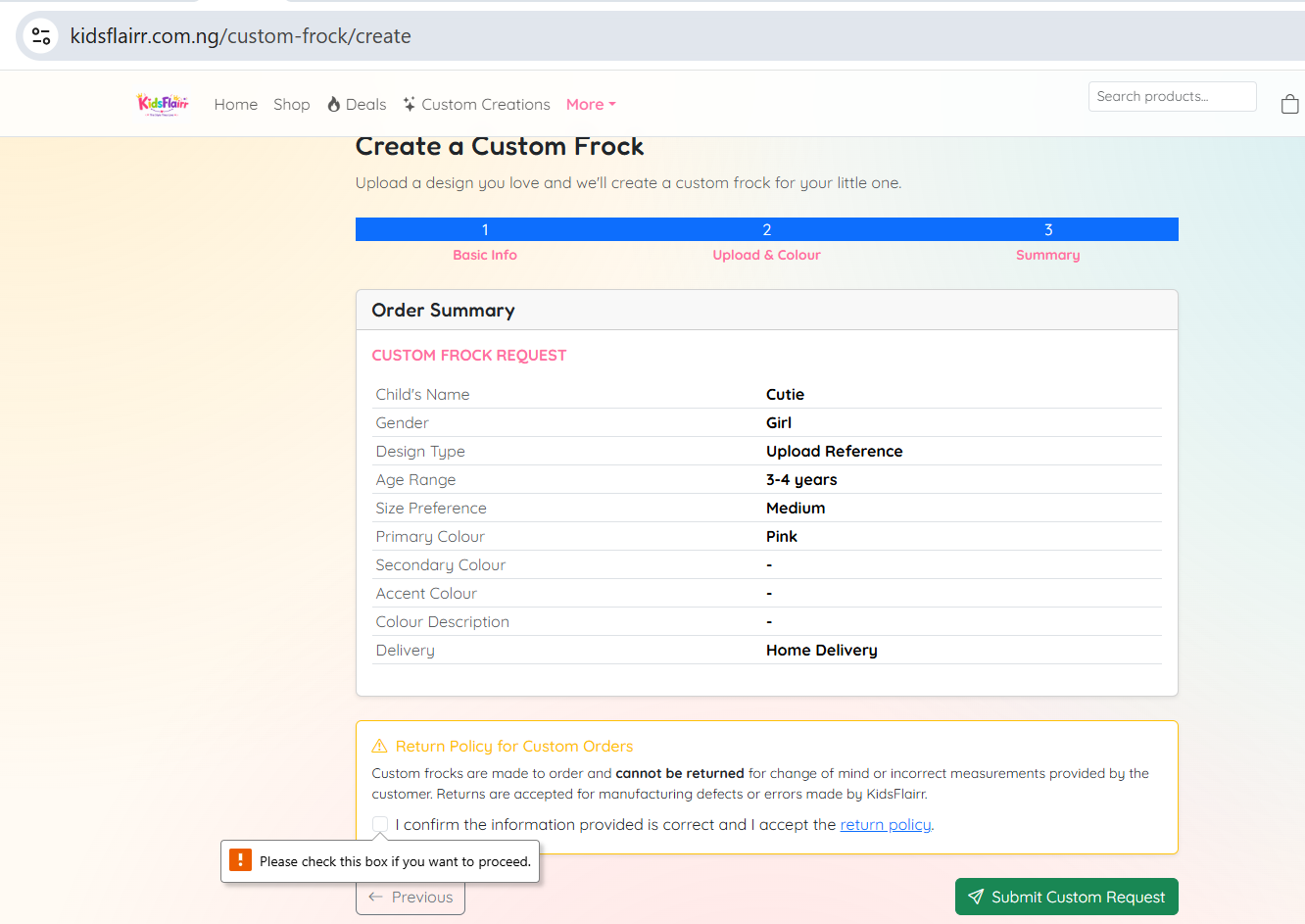
Menu > Custom Orders shows every custom request you have made. Start a new order, upload your measurements with the guide, pick fabric and style, then approve the quote to begin production. Follow each order on its status timeline.
10 Contact Page
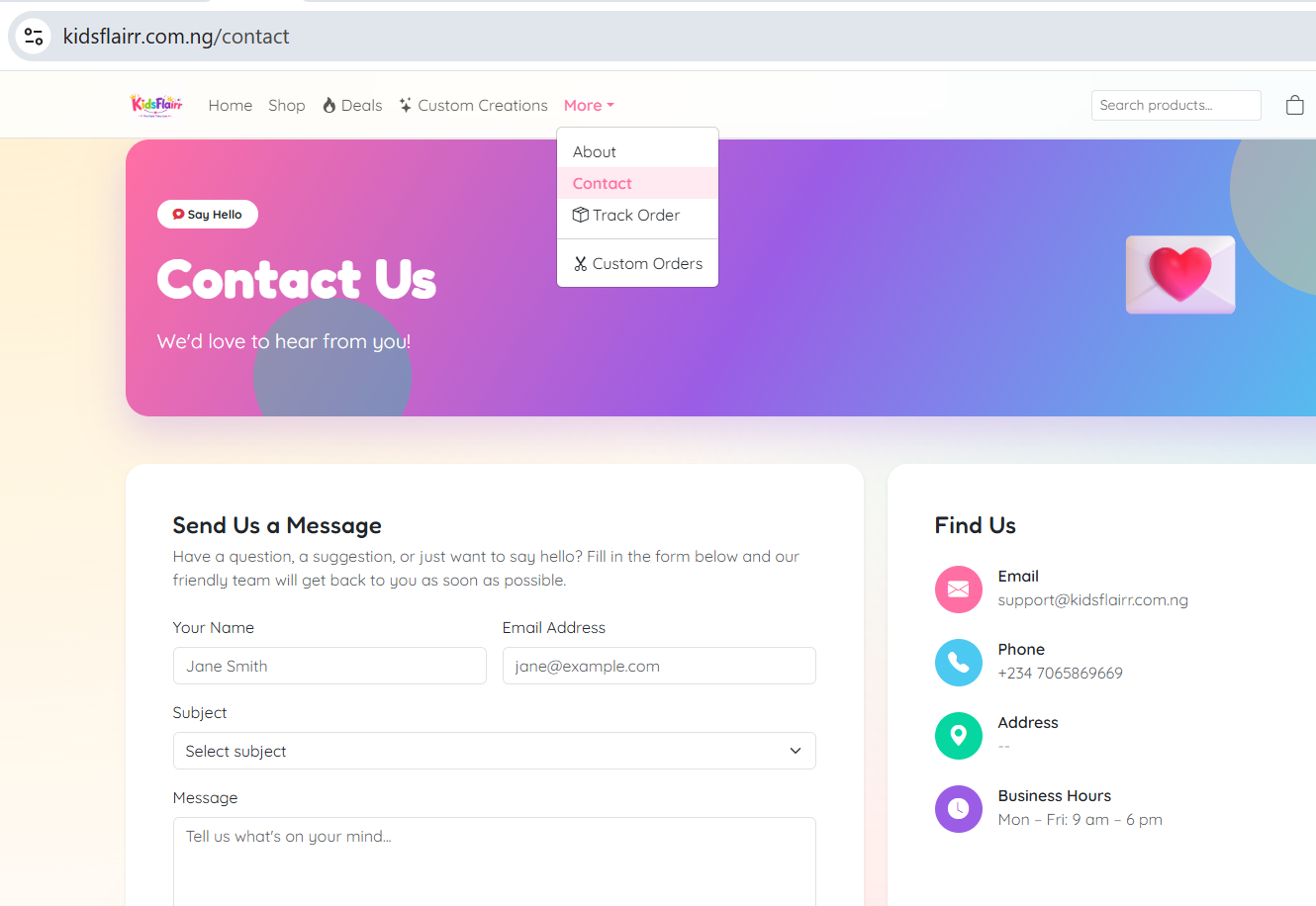
Menu > Contact sends a message straight to our team - we reply within one business day. Include your order reference if your question is about an existing order.
11 Track Order Page
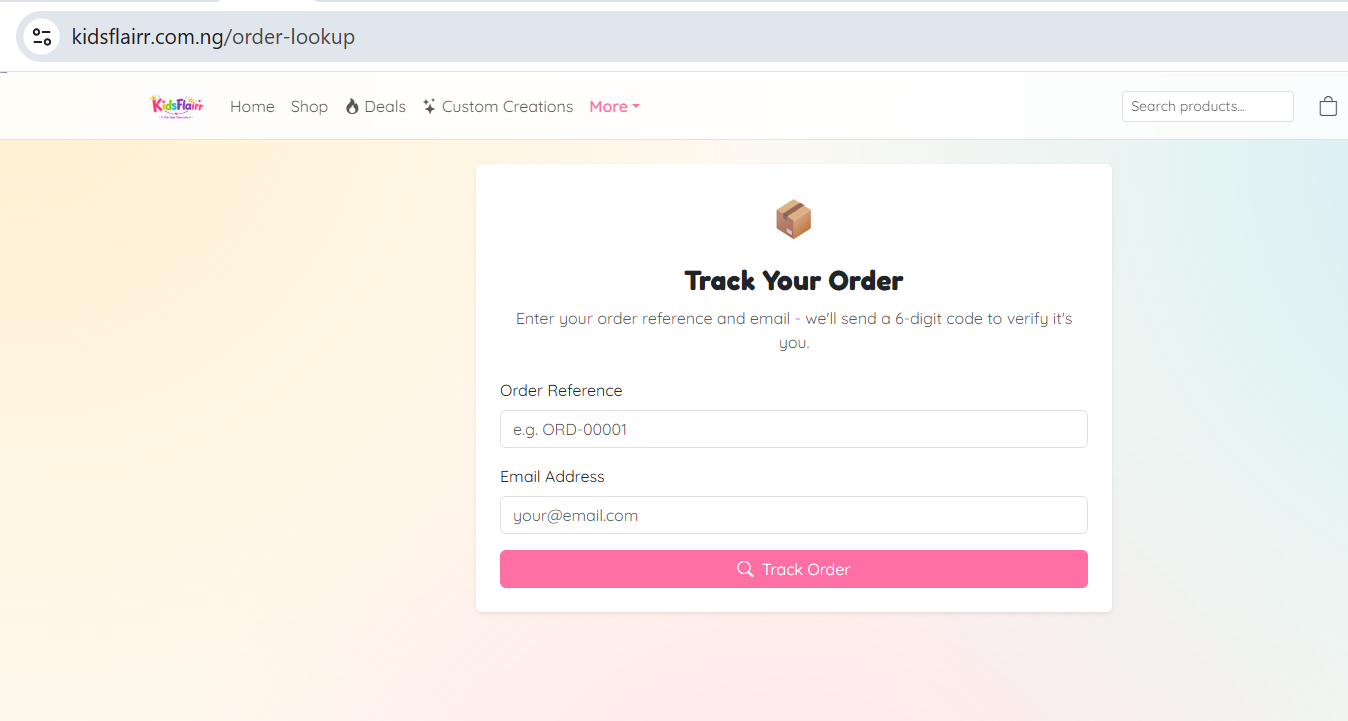
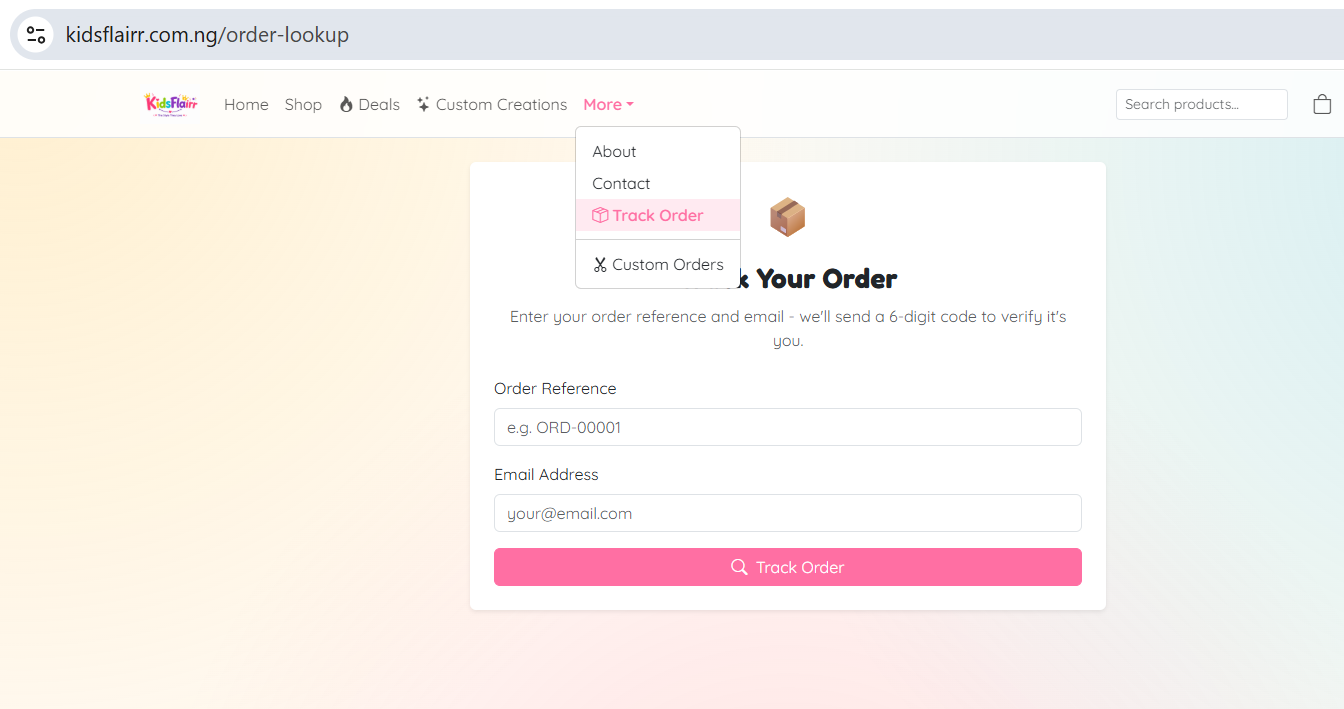
From the menu choose Track Order, enter your order reference and email, then type the 6-digit code we send you. The tracking page shows live status and delivery details without needing an account.
Need More Help
This guide covers everyday shopping with us. If something is still unclear, contact our team from the Contact page.
Still stuck?
Our team replies within one business day.